
How To
How to Download Discord on PS5: Step-by-Step Guide (2025)

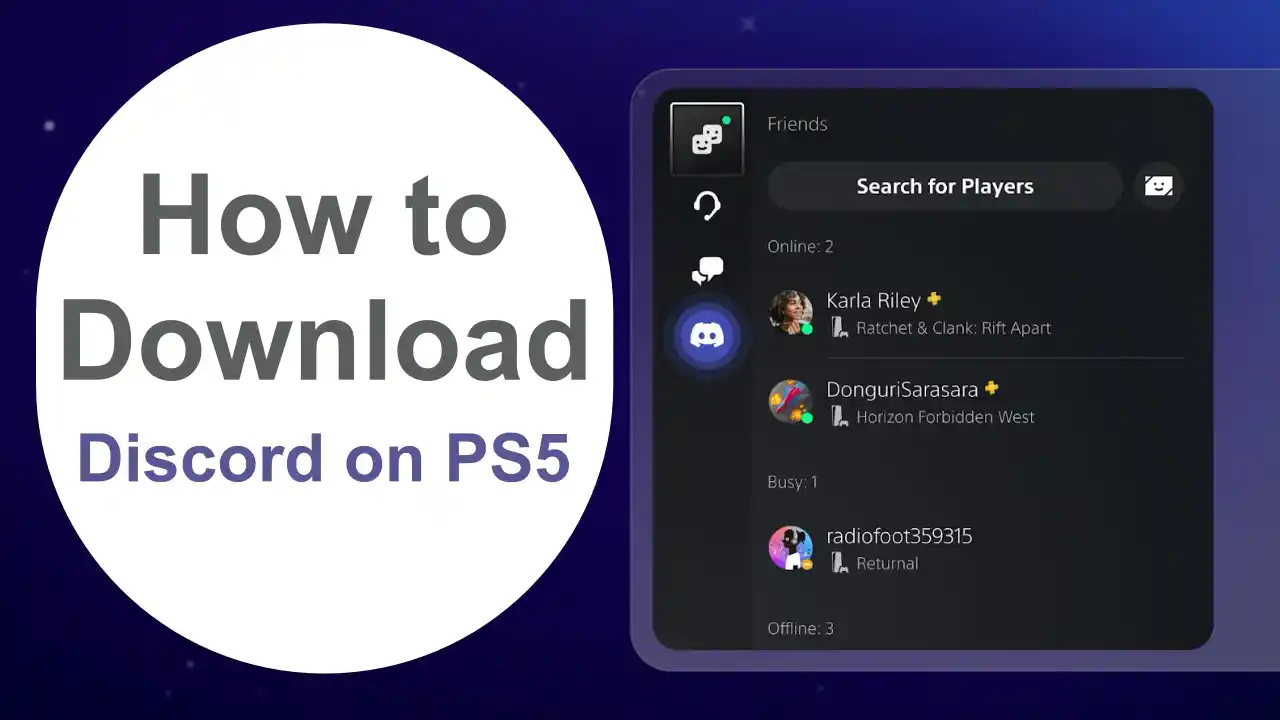
Discord has officially arrived on PlayStation 5, allowing gamers to voice chat with friends across different platforms while playing their favorite games. If you’re wondering how to download Discord on PS5 and set it up, this comprehensive guide will walk you through every step of the process.
Can You Use Discord on PS5?
Yes, Discord is now available on PS5. Sony and Discord partnered to bring native Discord integration to PlayStation consoles, making it easier than ever to connect with your gaming community directly from your console.
Requirements Before You Start
Before downloading Discord on your PS5, make sure you have:
- A PlayStation 5 console with the latest system software update
- An active PlayStation Network (PSN) account
- A Discord account (create one free at discord.com if you don’t have one)
- Stable internet connection
How to Download Discord on PS5: Complete Steps
Step 1: Update Your PS5 System Software
First, ensure your PS5 is running the latest system software. Navigate to Settings, then System, and select System Software Update and Settings. If an update is available, download and install it before proceeding.
Step 2: Access the PlayStation Store or Media Tab
Discord integration on PS5 doesn’t require a traditional app download. Instead, the Discord voice chat feature is built into the PS5 system software. However, you’ll need to link your accounts first.
Step 3: Link Your Discord Account to PlayStation
Open the Settings menu on your PS5 and select Users and Accounts. Navigate to Linked Services and select Discord from the list of available services. You’ll receive a code or be directed to a website where you can complete the linking process by logging into both your Discord and PlayStation accounts.
Step 4: Complete the Connection Process
Follow the on-screen prompts to authorize the connection between your Discord and PlayStation accounts. Once completed, your accounts will be linked, and you’ll be able to access Discord voice chat features directly from your PS5.
How to Use Discord Voice Chat on PS5
Once you’ve linked your accounts, using Discord on PS5 is straightforward:
- Join a Discord voice channel from the Discord mobile app or desktop application
- On your PS5, press the PS button to open the Control Center
- Select the Game Base card
- You’ll see your active Discord voice chat listed
- Transfer the voice chat to your PS5 by selecting it
Your Discord conversation will now stream through your PS5, allowing you to chat with friends while gaming.
Troubleshooting Common Issues
Discord Not Showing on PS5
If Discord isn’t appearing on your PS5, try these solutions:
- Verify your PS5 system software is fully updated
- Check that your Discord and PSN accounts are properly linked
- Restart your PS5 console
- Ensure you’ve joined a Discord voice channel from another device first
Audio Quality Problems
For better audio quality on Discord voice chat:
- Use a quality headset connected directly to your PS5 controller
- Check your audio output settings in PS5 Settings
- Adjust Discord voice settings from the mobile or desktop app
- Ensure your internet connection is stable
Account Linking Issues
If you’re having trouble linking accounts:
- Make sure you’re logged into the correct Discord account
- Verify your PSN account is in good standing
- Try unlinking and relinking the accounts
- Clear your browser cache if using the web portal
Benefits of Using Discord on PS5
Integrating Discord with your PS5 offers several advantages:
Cross-Platform Communication – Chat with friends on PC, mobile, Xbox, or other platforms while gaming on PS5.
Better Audio Quality – Discord’s voice technology often provides clearer communication than traditional party chat.
Larger Group Chats – Discord channels support more participants than standard PS5 party chat.
Community Features – Access your Discord servers and communities directly while gaming.
Frequently Asked Questions
Do I need Discord Nitro to use Discord on PS5?
No, Discord Nitro is not required. The basic Discord voice chat features work with a free Discord account.
Can I use Discord text chat on PS5?
Currently, only Discord voice chat is supported on PS5. Text chat must be accessed through the Discord mobile app or desktop application.
Does using Discord on PS5 affect game performance?
No, Discord voice chat runs efficiently and shouldn’t impact your gaming performance or frame rates.
Can I stream Discord audio to multiple devices?
Your Discord voice chat can only be active on one device at a time. When you transfer it to PS5, it will disconnect from other devices.
Tips for the Best Discord Experience on PS5
To optimize your Discord usage on PlayStation 5:
- Keep both your PS5 system software and Discord app updated on other devices
- Use a quality gaming headset for the best audio experience
- Adjust voice sensitivity settings in Discord for clearer communication
- Create dedicated Discord servers for your PS5 gaming groups
- Familiarize yourself with Discord’s server management features on mobile or desktop
Conclusion
Downloading and setting up Discord on PS5 is a straightforward process that opens up new possibilities for cross-platform gaming communication. By linking your Discord account to your PlayStation Network account, you can seamlessly chat with friends regardless of what platform they’re using. Whether you’re coordinating strategies in multiplayer games or just hanging out with friends, Discord integration makes your PS5 gaming experience more social and connected.
Start enjoying Discord on your PS5 today by following the steps outlined in this guide, and take your gaming communication to the next level.
